At Slite, Granola is a team favorite because the meeting notes are already well structured. With tl;dv, we can sync meeting content into our custom sources and search it alongside the rest of our company knowledge, so useful context from a call does not end up buried in a transcript.
Those are very different jobs, but both are good examples of what matters when choosing a documentation automation tool: ease of use, precision, and reliability for the job you need it to do.
Here is our list of documentation automation tools, compiled by the team behind Slite.
Slite is the only product on this page we know inside out, so it is also the one we can wholeheartedly endorse. But after years of speaking with teams about how they create and maintain documentation, we also know that Slite is not for every job.
We reviewed six other tools based on where they get their information, what triggers the workflow, how review works, whether the finished document stays current, and what the product costs.
Key takeaways
- Documentation automation tools create or update documentation from sources such as code repositories, meetings, support conversations, company chat, CRM data, and screen recordings.
- Some tools focus on creating the first version. Others also detect when the source has changed, prepare updates, or help teams review documentation after publication.
- The trigger shapes the workflow. A merged pull request, completed meeting, scheduled review, recurring support question, screen recording, or manual request will produce a different type of document.
- Having humans in the loop (Human review) is important, especially when employees, customers, or AI agents will rely on the finished documentation.
What are documentation automation tools?
Documentation automation tools are software products that automate the creation, updating, and maintenance of documentation.
Some turn screen activity, meetings, code changes, or CRM data into new documents. Others also help teams review those documents and keep them current after publication.
How documentation automation works
Most documentation automation workflows follow the same basic pattern:
- Source: The tool pulls information from a meeting, screen recording, code repository, CRM, support conversation, or existing knowledge base.
- Trigger: An event starts the workflow, such as a completed call, merged pull request, scheduled check, or manual request.
- Draft or update: The tool creates a new document or suggests changes to an existing one.
- Human review: A person checks the output, confirms the details, and decides whether it is ready to publish.
- Maintenance: Some tools stop after creation, while others keep checking the source and prepare another update when the information changes.
Your documentation automation tools for 2026
Here are our top choices of documentation automation tools at a glance:
| Tool | Best for | Main source | Maintenance after creation | Pricing |
|---|---|---|---|---|
| Slite | Internal documentation that needs to stay current | Docs, Slack, Drive, GitHub, Linear, Jira, Intercom, Zoom, and more | Yes, with drift detection and suggested updates | Basic: $10/user/month; Pro: $20/user/month; Enterprise: custom |
| Scribe | Visual SOPs and process guides | Screen activity | No automatic drift detection | Basic: free; Pro Personal: $25/user/month; Pro Team: $13/user/month with a five-seat minimum; Enterprise: custom |
| Tango | Screen capture with in-app guidance | Screen activity | Version history, but no automatic process-drift detection | Free; Pro Personal: $22/user/month; Pro Team: $15/user/month with a three-user minimum; Enterprise: custom |
| Mintlify | Developer and API documentation | Code repositories and API specifications | Yes, through code-linked suggestions and automations | Starter: free; Pro: paid with usage-based credits; Enterprise: custom |
| PandaDoc | Contracts, proposals, quotes, and signatures | Templates, CRM data, and form inputs | Not needed for signed, point-in-time documents | Free eSign; Starter: $19/user/month; Business: $49/user/month; Enterprise: custom |
| Fathom | Meeting transcripts, summaries, and action items | Online meetings | No wider documentation-maintenance workflow | Free; Premium: $16/user/month; Team: $15/user/month with a two-user minimum; Business: $25/user/month; Enterprise: custom |
| Storydoc | Personalized sales decks and proposals | CRM data, call insights, and brand content | Version control for sent documents | Starter: $19.80/month; Pro: $36/month; Team: custom |
The 7 best documentation automation tools for 2026
Here is how the seven tools compare by use case, source, maintenance capabilities, and pricing.
1. Slite
In 2016, we launched Slite as a knowledge base, at a time when companies were drowning in docs nobody could find, let alone trust. Over the next decade, we focused on making company knowledge easier to write, organize, and rely on, building a knowledge base now used by thousands of teams.
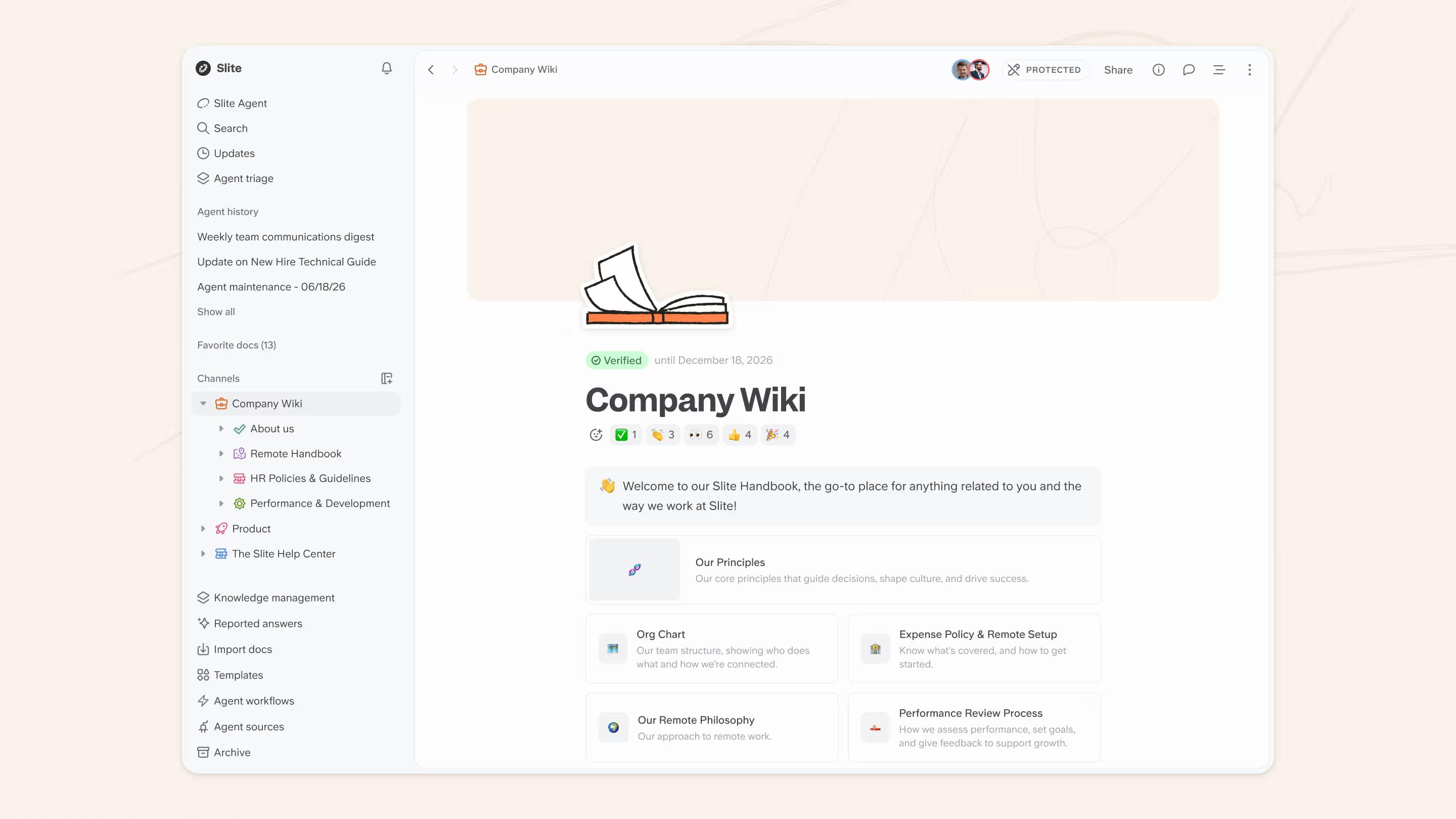
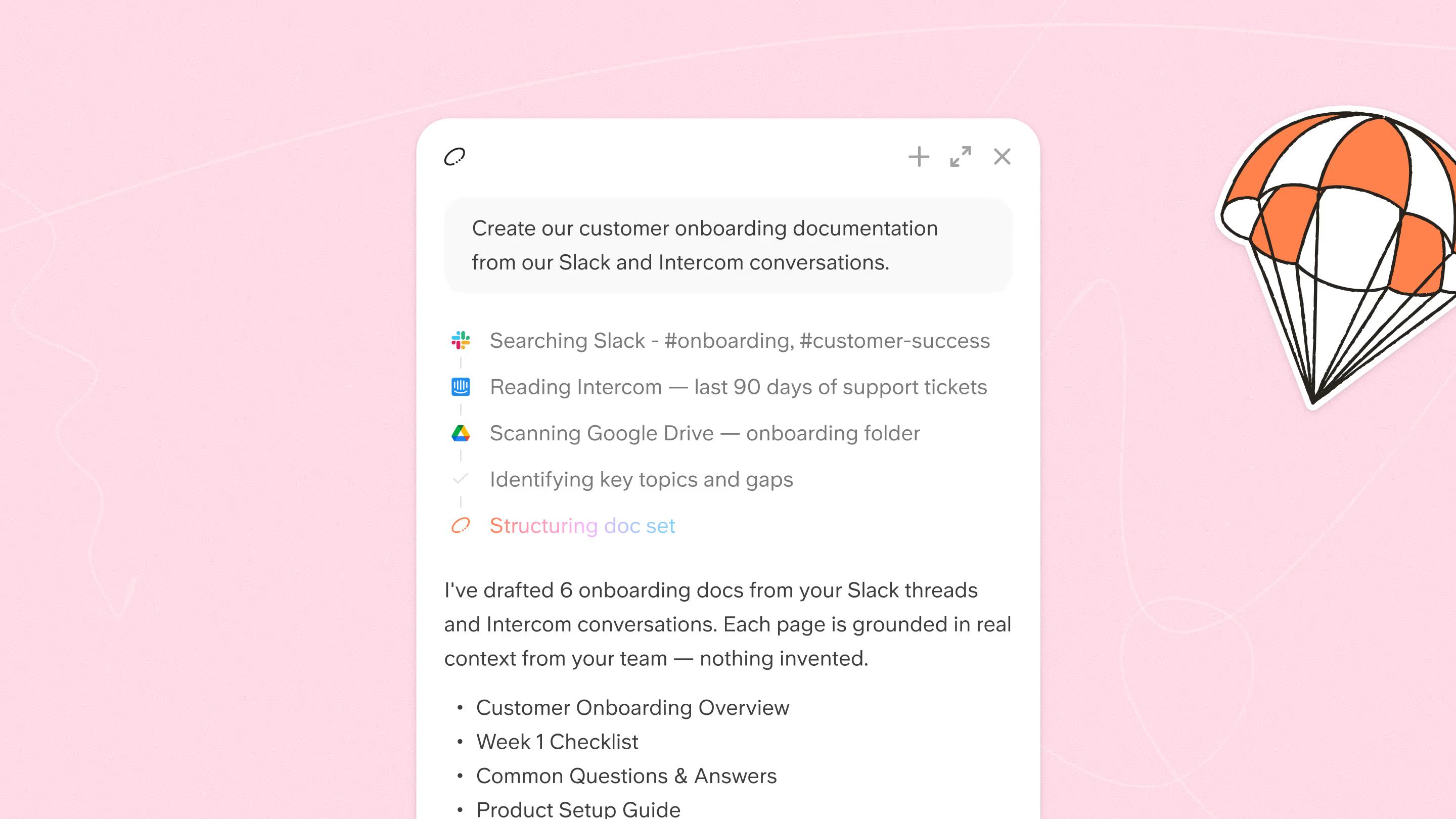
In 2026, we expanded Slite into a self-maintaining knowledge base that automates internal documentation as well. Slite Agent can turn the context already sitting in Slack, Intercom, Google Drive, and other company tools into structured drafts, suggest an owner for every page, and check published docs for outdated information.
Unlike most tools on this page, Slite does not stop once a document has been created. It prepares updates for review whenever it notices a shift or change in a connected tool, shows the sources behind each suggestion, and leaves the final decision to a human.
Key features
- Draft a complete doc set from one prompt: Point Slite Agent at Slack, Intercom, Google Drive, or another connected source, then give it a prompt or template. It turns the relevant company context into a structured set of pages you can accept, edit, or reject.
- Create documentation from real company context: The Agent uses existing decisions, support conversations, files, and other source material instead of relying on a generic prompt. Each draft includes citations, so reviewers can check where a claim came from.
- Assign an owner to every document: Slite Agent analyzes team activity and suggests the person closest to each topic. You can confirm ownership across the full doc set instead of assigning every page manually.
- Keep documentation current with Agent Maintenance: Choose a cadence, such as weekly, and Slite checks each document against your connected tools for information that has changed.
- Review proposed updates in Triage: When Slite finds a mismatch, it prepares an update rather than changing the document automatically. Reviewers can inspect the sources, compare the current and proposed versions, edit the suggestion, approve it, or dismiss it. Nothing changes without human review and approval.
- Track which docs can still be trusted: Verification badges, review dates, owners, version history, and edit attribution make it easier to see whether a document is current and who or what last changed it. Verified docs are ranked higher in search, while unverified or stale sources rank lower, with a trust signal on every citation.
Pros
- Creation and maintenance in one product: Slite can help teams create internal documentation and self-maintain it after publication.
- Works with company knowledge: The Agent can use decisions, support conversations, files, meetings, code, and existing documentation.
- Human approval stays in the workflow: Slite prepares the research and suggested changes in Triage, while a person makes the final decision.
- Verification makes trust visible: Every document has an active owner and review date, making it easier to know who is responsible for keeping it accurate, and when a document is out of date.
- Sources remain visible: Reviewers can check where the information came from before accepting changes to a new page or update.
- A self-maintaining knowledge base: With Slite, teams do not need one product for generation, another for maintenance, and a third for publishing internal docs.
Cons
- No automated screenshot capture: Slite cannot record someone completing a process and turn the clicks into a visual guide. Scribe and Tango are better suited to that job.
- No OCR: Slite does not extract text from images.
- No on-premises deployment: Companies that require a fully self-hosted knowledge base will need another option.
- No write-back to developer tools: Slite can use information from tools such as GitHub, Jira, and Linear, but it does not apply changes inside those systems.
Slite pricing
Slite offers three plans:
- Basic: $10 per user per month, billed annually. It includes unlimited documents, AI search within Slite, document verification, the Knowledge Management Panel, and API and MCP access.
- Pro: $20 per user per month, billed annually. It adds Slite Agent, search across connected tools, document fact-checking with suggested fixes, agent workflows, and 50 monthly credits per seat.
- Enterprise: Custom pricing. It adds advanced security and controls, audit logs, reader-only seats, an SLA, migration and onboarding support, and a dedicated account manager.
The 14-day free trial includes the features in both Basic and Pro, with no credit card required.
What do real users say about Slite?
Here's what we mean when we say Slite can automate documentation creation and maintenance.
At Uscreen, Slite Agent turns basic information about a new feature into a structured internal guide covering its technical details, customer value, ownership, and common issues.
In 30 seconds I can create a guide for any new feature.
At Wuffes, Slite Agent helped the team identify documentation that had become outdated or inconsistent:
Slite Agent helped us figure out where all of our resources are mismatched, where information is not aligned, where it's outdated. We were able to go update all of it.
G2 rating: 4.6/5
2. Scribe
Scribe is built for one of the most repetitive documentation jobs: explaining a process that happens on screen.
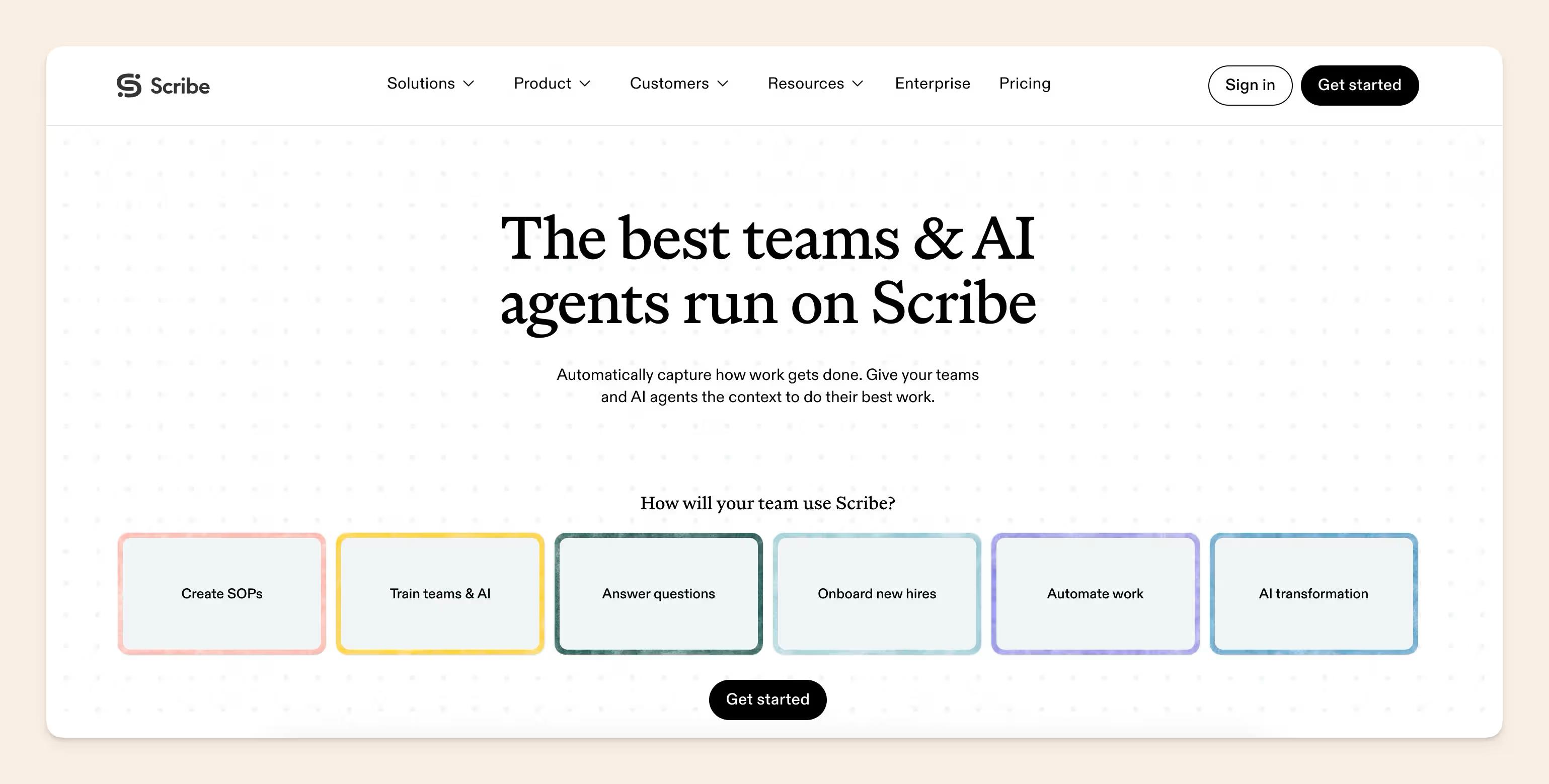
You start the recorder, complete the task, and stop. Scribe captures each click, takes screenshots, and turns the session into a step-by-step guide. This makes Scribe a strong option for software onboarding, support instructions, internal operations, and the small administrative processes people often explain repeatedly on calls.
One prospect told us Scribe had "superior content creation" for this kind of work. We agree. Slite has no equivalent to its automated screenshot capture.
Key features
- Automatic process capture: Scribe records a process and turns the user's actions into written instructions with screenshots and cursor highlights.
- Automatic workflow discovery: Autocapture runs quietly in the background and surfaces recurring workflows, including processes nobody deliberately stopped to document.
- Editable instructions and screenshots: Authors can rewrite generated steps, remove unnecessary actions and edit or redact screenshots.
- Longer process documents: Scribe Pages lets teams combine multiple guides with text, videos, screenshots, and links to document more complicated workflows.
- Flexible sharing: Guides can be shared by link, embedded in another platform, or exported as PDF, HTML, or Markdown.
Pros
- Fast visual documentation: Scribe can turn a completed process into a readable guide in minutes.
- Finds undocumented workflows: Autocapture can surface recurring work without relying on someone to remember to start a recording.
- Strong screenshot tools: Cropping, annotation, replacement, and redaction remove much of the cleanup that usually follows manual screen capture.
- Flexible delivery: Teams can use links, embeds, exports, Pages, and on-screen guidance.
- Easy for occasional authors: Employees do not need to learn a complicated authoring system before documenting a task.
Cons
- Automatic drift detection is not available yet: Autocapture can discover recurring workflows, but notifying teams when an existing process changes and keeping the documentation library current are still listed as coming soon.
- Generated guides may need cleanup: Scribe can capture unnecessary clicks, screenshots, or steps that authors have to remove before publishing.
- Several useful features require a paid plan: Desktop and mobile workflows, screenshot editing and redaction, company branding, and PDF, HTML, and Markdown exports are not included in Basic.
- The team plan starts at five seats: Smaller teams that need comments and collaboration must pay for at least five Pro Team licenses.
- Broader controls sit behind Enterprise pricing: Automatic sensitive-data redaction, single sign-on, user roles, multi-team management, and centralized user and document controls require a custom plan.
- Visual SOP focus: Scribe is less suited to policies, detailed technical explanations, or documentation assembled from knowledge across several company systems.
Scribe pricing
Scribe offers four plans:
- Basic: Free.
- Pro Personal: $25 per seat per month with annual billing, or $35 with monthly billing.
- Pro Team: $13 per seat per month with annual billing, or $17 with monthly billing. It starts at five seats and adds team collaboration through comments.
- Enterprise: Custom pricing.
What do real users say about Scribe?
G2 rating: 4.8/5
Most users praise Scribe for making it much faster to create step-by-step guides, SOPs, and training materials from work they are already completing.
But some find that the generated guides still need cleanup when incidental clicks become separate steps, like Pollyana L. on G2:
I find it troublesome that Scribe records clicks on the screen as separate steps, like when I'm zooming in or out.
(Source)
3. Tango
Tango starts with a workflow that looks similar to Scribe. You record yourself completing a task, and the product creates a visual guide with screenshots, highlighted click areas, and written instructions.
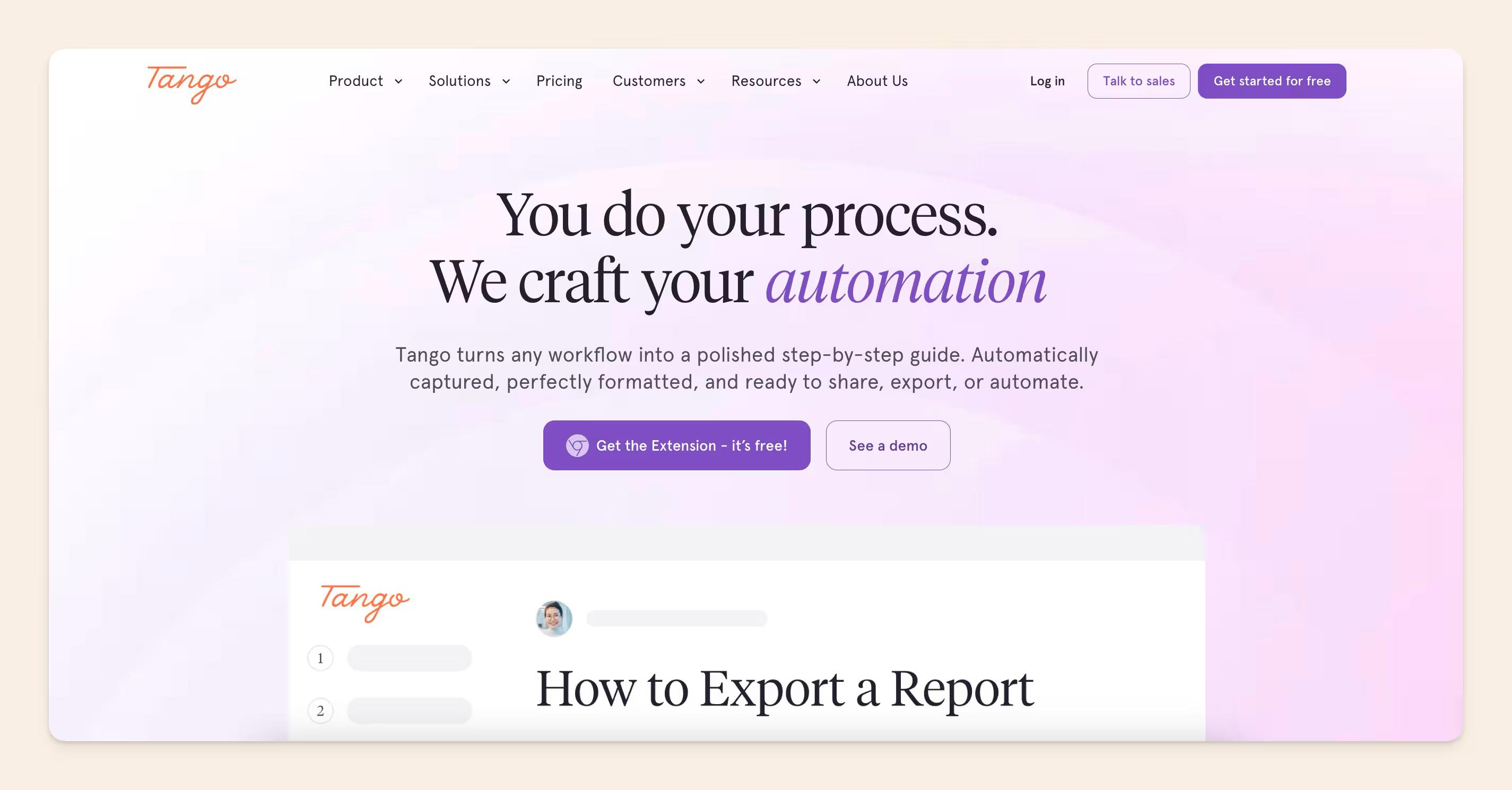
The difference is that Tango can also deliver guidance while the employee is using the software.
Tango can help someone complete the task, but the policy, reasoning, or wider company knowledge around that task needs to live somewhere else. Someone also has to update the guide when the process changes.
Key features
- Automatic process capture: Tango records a browser or desktop workflow and turns it into a step-by-step guide.
- Guide editing: Authors can rewrite instructions, add links or context, annotate or blur screenshots, and capture additional steps after creating the guide.
- In-app walkthroughs: Guide Me places instructions over the software itself, showing employees where to click as they complete the process.
- Pinned guidance: Nuggets let teams attach guides, reminders, reference information, and links to specific places inside a web application.
- Multi-path workflows: Enterprise customers can include different routes through a process, so the guidance changes based on the employee's situation.
- Workflow automation: Tango can turn guides into automations that handle repetitive clicking, navigation, typing, and form-filling while the employee supervises.
- Flexible sharing: Workflows can be shared by link, embedded in another platform, or exported as PDF, Markdown, and HTML.
- Usage analytics: Viewership and workspace analytics show which workflows people use and where they encounter difficulties.
Pros
- Quick process capture: Teams can create polished visual guides without writing every step or taking screenshots manually.
- In-app delivery: Guide Me and Nuggets put instructions inside the software instead of sending employees to a separate document.
- Goes beyond documentation: Enterprise customers can combine written guidance with branching workflows and browser automation.
- Useful analytics: Viewership insights help enablement teams understand which workflows people use and where they get stuck.
- Several sharing options: Guides can be distributed through links, embeds, and PDF, Markdown, or HTML exports.
Cons
- The strongest features require Enterprise: Guide Me, Nuggets, multi-path workflows, automations, workspace analytics, audit logs, and 365-day version history require custom pricing.
- No automatic process-drift detection: Tango lets authors edit an existing workflow or capture new steps, but its current product documentation does not describe automatic detection when the underlying process changes.
- Pro version history is limited: Pro customers receive 14 days of workflow history, while Enterprise extends this to 365 days and adds audit logs.
- Screen-based focus: Tango is best suited to processes completed in software. It is less useful for policies, detailed explanations, meeting knowledge, code changes, or documentation assembled from several company systems.
- Some guides still need cleanup: Complex captures may require authors to remove unnecessary actions, rearrange steps, or add context before publishing.
Tango pricing
Tango offers four pricing options:
- Free: $0, with five shared workflows, browser capture, link and embed sharing, and up to ten users in a workspace.
- Pro Personal: $22 per user per month with annual billing, or $26 with monthly billing.
- Pro Team: $15 per user per month with annual billing, or $20 with monthly billing. It requires at least three users.
- Enterprise: Custom pricing based on the number of supported users.
What do real users say about Tango?
G2 rating: 4.7/5
Reviewers praise Tango for being easy to set up and use, and for how quickly it turns completed workflows into shareable tutorials. Many also say it saves them time on repetitive documentation work.
But editing is a common frustration, particularly when complex captures require cleanup or more customization than the editor allows, as Harshul S. explained in a G2 review.
Sometimes the auto-captured step also needs manual cleanup, and especially for the complex workflow, the editor needs to be a little more flexible…
(Source)
4. Mintlify
Developer and technical teams often choose Mintlify when documentation needs to stay close to a codebase.
Teams can connect a repository, work in Git or the web editor, and use Mintlify Agent and Automations to create or update documentation from code changes, Slack threads, and other source material.
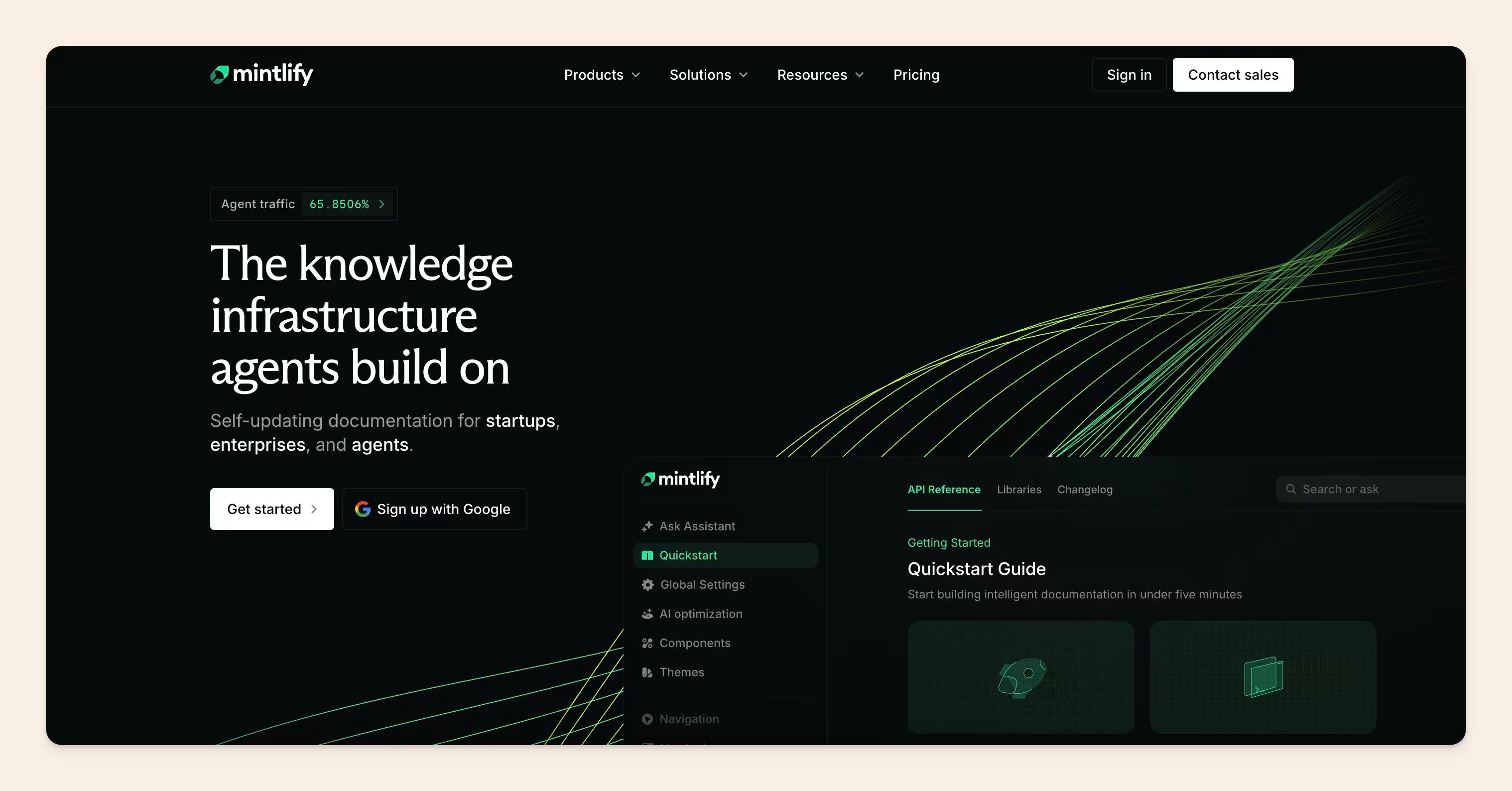
Mintlify now supports internal knowledge bases and help centers too. Its docs-as-code workflow, API tooling, and agent-ready publishing still make it a particularly strong fit for developer and product documentation.
We use Mintlify for Slite's own API docs, and our CEO, Christophe Pasquier, has described it as "a product he loves for that job."
Key features
- Git-backed authoring: Teams can work locally or use the web editor, which syncs changes back to Git.
- AI documentation agent: Mintlify Agent researches connected repositories and existing docs, writes or updates content, validates the changes, and opens a pull request or publishes directly.
- Triggered documentation maintenance: Automations can run when code or documentation changes, or when an event occurs in a connected tool.
- Cross-system context: The Agent can use Slack conversations and integrations such as Notion and Google Drive when researching or updating documentation.
- Developer documentation publishing: Mintlify includes API references, interactive playgrounds, custom domains, authentication, search, analytics, and preview deployments.
- Documentation for AI agents: Pages are served to AI tools as Markdown. Mintlify also generates llms.txt and skill.md and an MCP server so agents can find and use the documentation more easily.
Pros
- Creation and maintenance in one workflow: Mintlify can draft new documentation and continue updating it as code, source material, or connected systems change.
- Familiar engineering review: Proposed updates can move through pull requests, allowing engineers to inspect the changes before merging them.
- Strong publishing experience: Teams get the documentation site, API reference, interactive playground, search, analytics, and authentication in one platform.
- Accessible to non-technical contributors: The web editor and Slack Agent let product, support, and content teams contribute without editing MDX locally.
- Built for human and AI readers: The same documentation can serve developers, AI assistants, coding agents, and other tools through Markdown, MCP, and agent-focused files.
Cons
- The jump from Starter to Pro is steep: Pro costs $450 per month with annual billing or $540 with monthly billing.
- Starter excludes documentation automation: Agent, Assistant, Automations, and AI credits require a Pro or Enterprise plan.
- AI usage adds another cost variable: Each Pro deployment contributes 10,000 monthly credits. Agent runs, Assistant responses, and Automations draw from the shared balance, with optional add-ons and overages.
- Cross-system integrations require Enterprise: Using connected tools such as Notion, Jira, Linear, Intercom, or Google Drive as Agent context requires an Enterprise plan.
- The repository remains central: The web editor lowers the barrier, but teams that do not already use Git may find the underlying docs-as-code model more technical than a standard knowledge base.
- Human review needs to be configured: Automations can merge changes directly. Teams that require approval should select the review option and protect the deployment branch.
Mintlify pricing
Mintlify offers three plans:
- Starter: Free, with five editor seats.
- Pro: $450 per month with annual billing or $540 with monthly billing.
- Enterprise: Custom pricing.
Friendly tip: Estimate how often your team will run the Agent and Automations before choosing a plan. A code-update automation uses about 180 credits per run on average, while larger jobs such as translations and documentation audits can use considerably more.
What do real users say about Mintlify?
G2 rating: 4.6/5
Mintlify has a small G2 review sample (19 total reviews as at the time of writing), but the available feedback is positive about its clean interface, customization options, and ease of creating documentation.
Pricing is the clearest reservation for smaller teams and early-stage projects, as Himanshu J. explained in a G2 review:
The biggest downside is pricing, especially for smaller teams or early-stage projects. It's often seen as more suited for funded startups than bootstrapped teams.
(Source)
5. PandaDoc
PandaDoc is the classic document automation product on this list. It is built for proposals, quotes, contracts, order forms, and other customer-facing documents that need to move from creation to approval, signature, payment, and tracking.
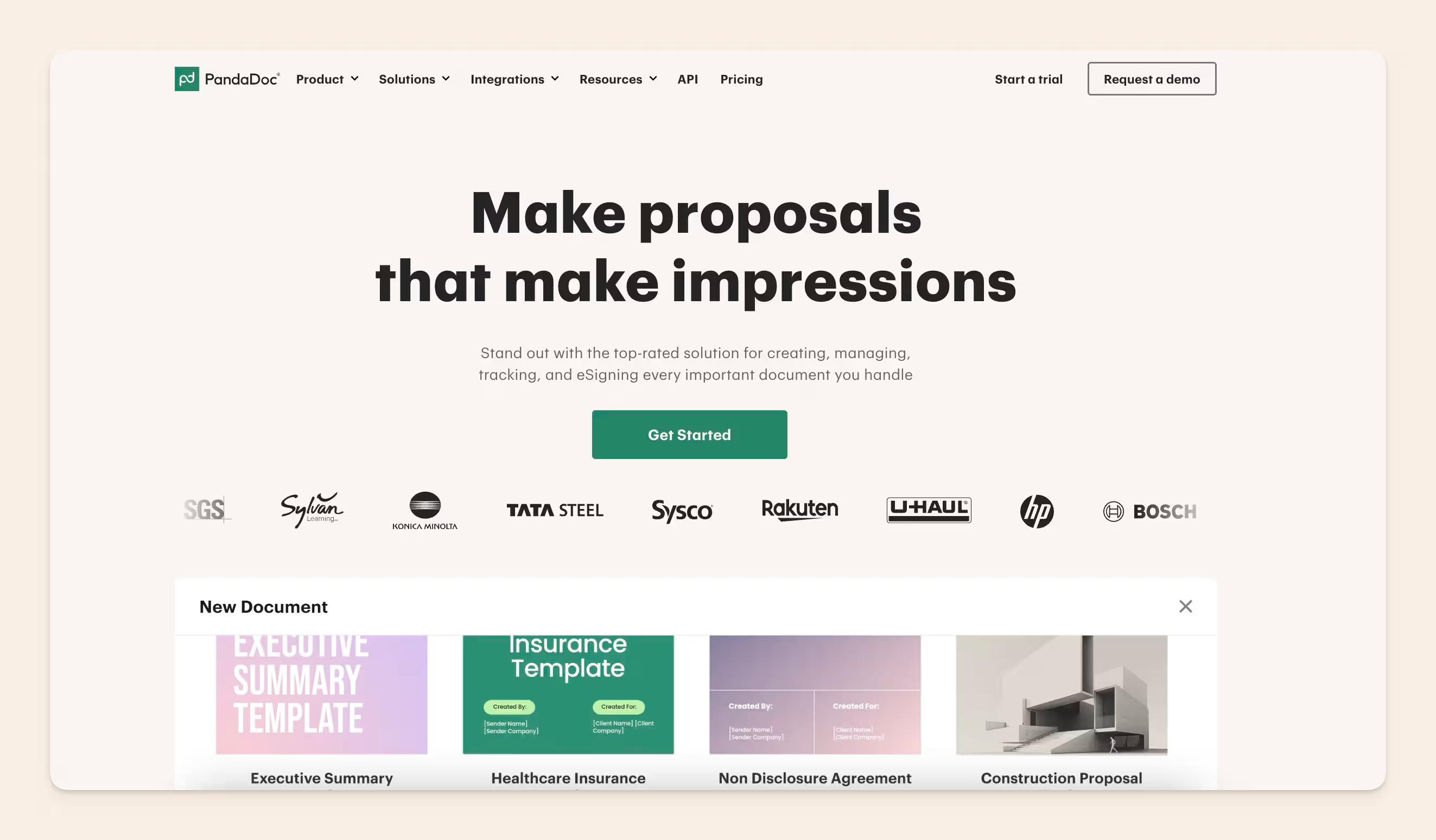
A sales team can start from a template, pull customer information from a CRM, add products and pricing, route the document for approval, send it to the buyer, collect a signature, and track its progress from one workspace.
At Slite, we use PandaDoc for contracts and proposals, which is a good example of the documentation workflows it is built to automate: point-in-time business documents that need approvals, signatures, and tracking.
Key features
- Reusable templates and content: Teams can create templates for repeatable documents and reuse approved sections, legal clauses, pricing tables, testimonials, and branded assets from the content library.
- CRM data merge: PandaDoc can pull customer, deal, and product information from tools such as Salesforce, HubSpot, and Pipedrive instead of asking salespeople to copy it manually.
- Quotes and pricing tables: Teams can add products from a catalog, calculate totals, apply taxes and discounts, and let buyers select between different options.
- Approval and negotiation workflows: Documents can move through internal approval before reaching the customer. Business and Enterprise plans also support contract negotiations and version history.
- E-signatures and payments: Recipients can review and sign documents online, while payment integrations allow teams to collect payment from accepted proposals, quotes, or contracts.
- Tracking and notifications: PandaDoc shows when a document has been sent, opened, viewed, signed, or completed, helping teams decide when to follow up.
Pros
- Complete commercial workflow: PandaDoc combines document creation, approval, signature, payment collection, and tracking.
- Reusable templates and content: Teams can standardize proposals and agreements without rebuilding every document from scratch.
- Strong CRM workflows: Customer and deal information can flow directly into a document, reducing manual entry and avoidable errors.
- Easy recipient experience: Customers can open, review, comment on, and sign documents without installing another application.
- Free e-signature plan: Occasional users can send and sign a limited number of documents without paying.
Cons
- Not designed for living internal documentation: PandaDoc handles point-in-time business documents rather than SOPs, onboarding guides, policies, or help content that needs to stay aligned with changing company knowledge.
- Important workflow features require Business: CRM integrations, approval workflows, the content library, and bulk sending are not included in Starter.
- Advanced automation sits behind Enterprise pricing: CPQ, workflow automation, smart content, team workspaces, and API access require an Enterprise plan or additional product.
- Per-seat costs can add up: Starter and Business are priced per user, which can become expensive as more sales, operations, and legal teammates need access.
PandaDoc pricing
PandaDoc offers four plans:
- Free eSign: $0, with up to 60 documents per year and two recipients per document.
- Starter: $19 per user per month with annual billing, or $35 with monthly billing.
- Business: $49 per user per month with annual billing, or $65 with monthly billing.
- Enterprise: Custom pricing.
What do real users say about PandaDoc?
G2 rating: 4.7/5
Reviewers praise PandaDoc for its intuitive interface and how easily it streamlines document creation, approvals, and electronic signatures.
But the features teams often need for a controlled sales workflow sit on the Business plan, which can make wider adoption expensive for smaller companies, as Valeria B. explained in a G2 review:
At $49 per user per month when billed annually, it didn't make much sense to give everyone a license.
(Source)
6. Fathom
Fathom is an AI meeting intelligence tool that records, transcribes, and summarizes calls across Zoom, Google Meet, and Microsoft Teams. Instead of handing back only a raw transcript, it creates structured summaries, key decisions, and action items shortly after the meeting ends.
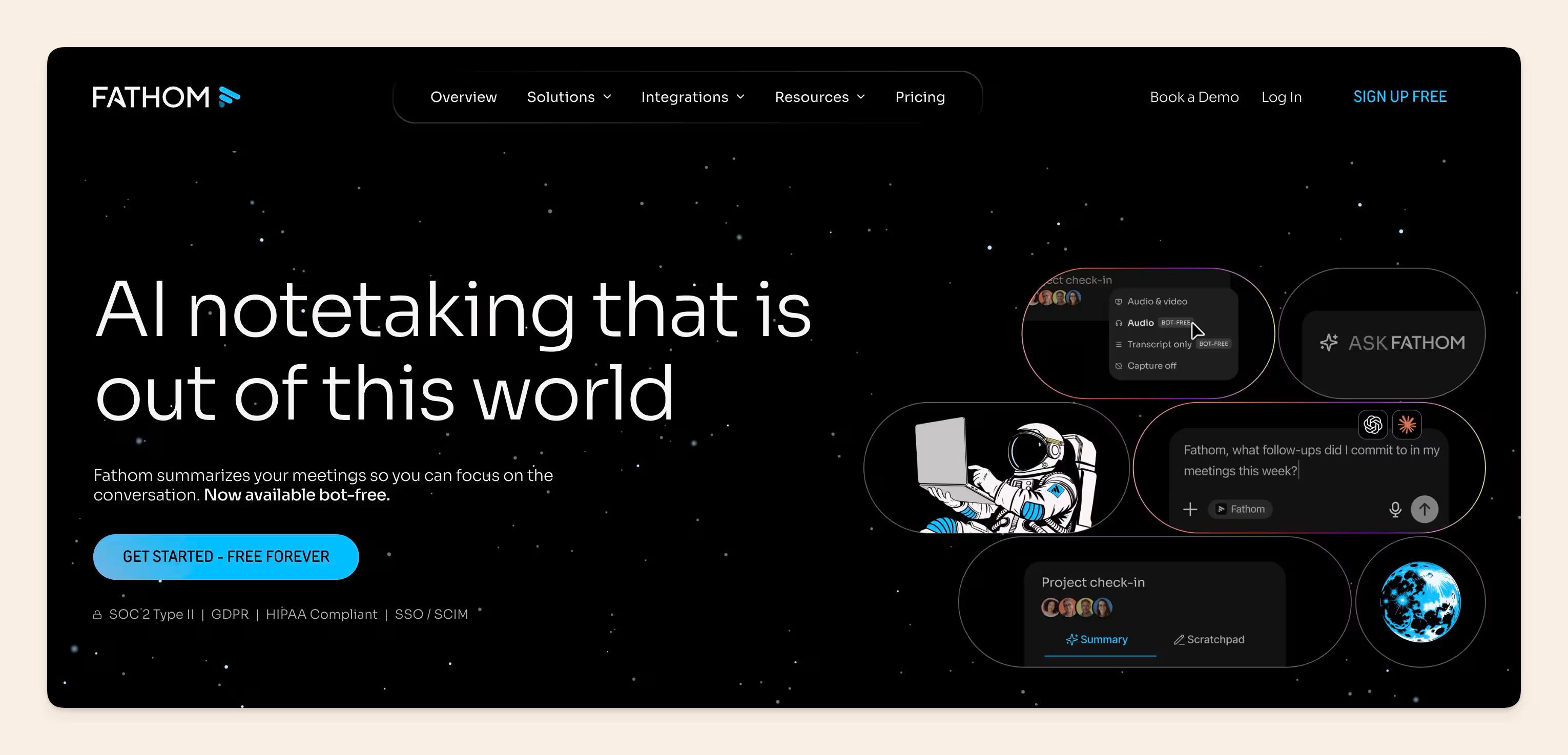
Fathom automates the meeting-capture stage of documentation, then creates a structured record of what happened and sends that information into other workflows.
Key features
- Automatic meeting documentation: Fathom records and transcribes calls, then generates structured summaries, decisions, and action items.
- Ask Fathom: Users can ask questions about a meeting and retrieve decisions, risks, objections, or other details without rereading the transcript.
- Advanced summary templates: Paid plans include summaries for different meeting types, AI-generated action items, follow-up emails, and customizable meeting summaries.
- Shared meeting library: Teams can organize calls into folders and playlists, share clips, leave comments, and receive alerts when selected keywords appear.
- CRM synchronization: Fathom can write meeting summaries and action items into Salesforce, HubSpot, and Close. Business customers can also map specific insights, such as pain points and next steps, into CRM fields.
- Workflow integrations: Teams can move transcripts, summaries, and action items into other tools through native integrations, Zapier, and Fathom's public API.
Pros
- Almost no manual note-taking: Fathom produces the recording, transcript, summary, decisions, and action items after the call.
- Fast turnaround: Teams can review and share meeting documentation while the conversation is still fresh.
- Generous free plan: Individuals receive unlimited recordings, storage, and transcriptions without paying for every meeting.
- Searchable meeting knowledge: Ask Fathom helps users retrieve decisions and context without replaying calls or reading full transcripts.
- Strong workflow integrations: CRM sync, Zapier, and API access reduce the manual work required to move meeting information elsewhere.
Cons
- Limited to meeting knowledge: Fathom does not create documentation from code changes, support tickets, screen activity, or the other systems where company knowledge develops.
- No wider maintenance loop: It does not monitor the SOP, policy, project brief, or help article created from a meeting after the information moves into another platform.
- Important details still need review: Summaries can miss context, nuance, unusual terms, or details from complicated conversations.
- Advanced AI is limited on the free plan: Free users receive advanced summaries for their first five calls each month. Unlimited advanced summaries, action items, follow-up emails, and Ask Fathom require a paid plan.
- Capture options remain limited: Mobile and native in-person capture are still in development, and users cannot upload an existing recording for Fathom to analyze.
Fathom pricing
Fathom offers individual and team plans:
- Free: $0. Advanced AI features are limited to five calls per month.
- Premium: $16 per user per month with annual billing, or $20 with monthly billing.
- Team: $15 per user per month with annual billing, or $19 with monthly billing.
- Business: $25 per user per month with annual billing, or $34 with monthly billing.
- Enterprise: Custom pricing.
What do real users say about Fathom?
G2 rating: 5/5
Reviewers praise Fathom for its accurate summaries, automatic action items, and how easily it lets them focus on the conversation instead of taking notes.
But technical jargon and industry-specific terms can still require manual correction, as Angelina C. explained in a G2 review:
Occasionally, the AI summary might misinterpret technical jargon or niche industry terms, requiring a quick manual edit.
(Source)
7. Storydoc
Storydoc is built for sales and marketing teams that need to create personalized decks, proposals, reports, and one-pagers at scale.
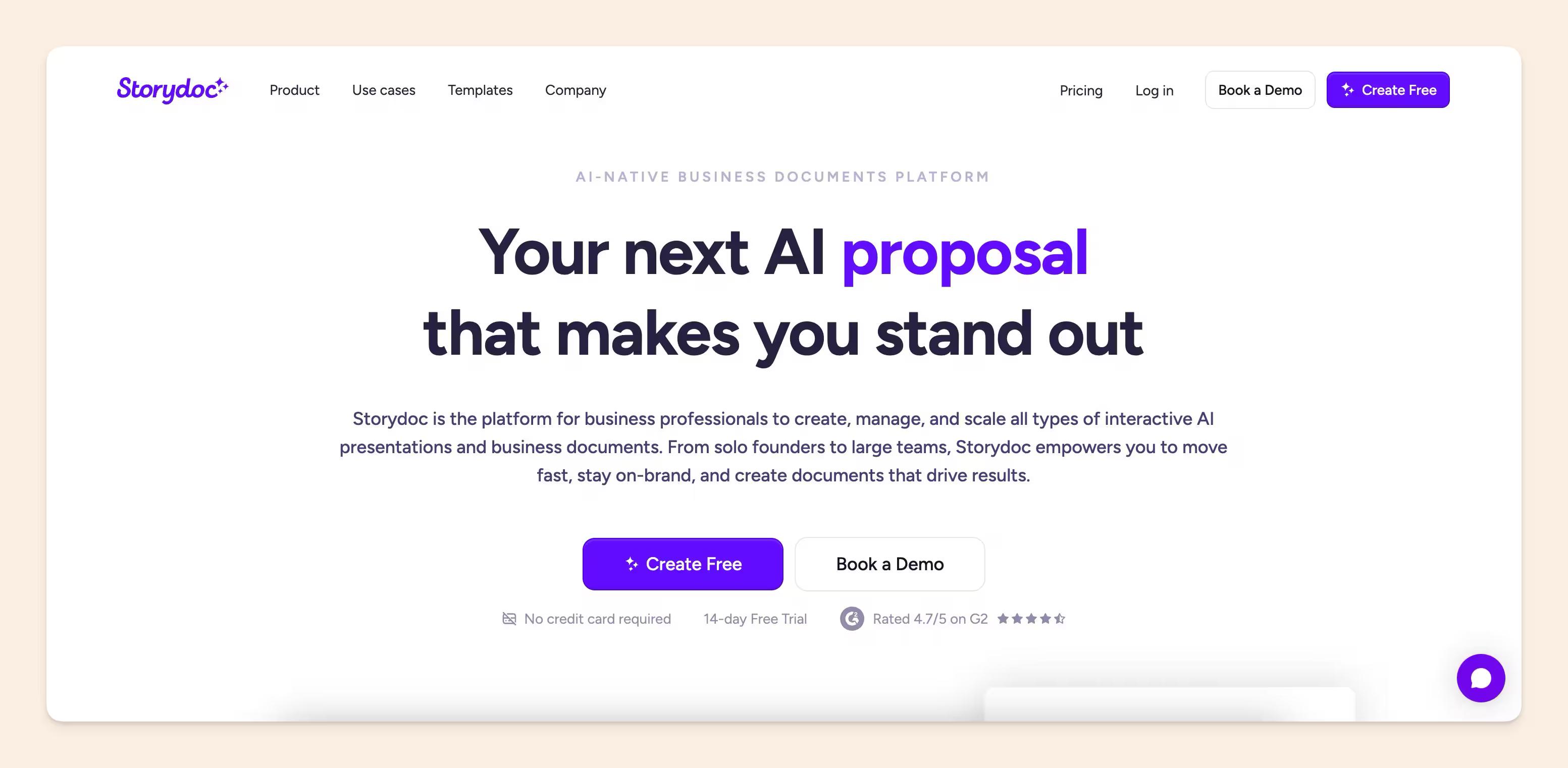
It turns existing content and live customer data into interactive business documents. A rep can generate a follow-up deck from CRM and meeting context, send each prospect a unique link, and see what they read, how long they spend on each section, and which calls to action they click.
Storydoc can create, personalize, distribute, and track customer-facing content. However, it is not designed to maintain internal SOPs, policies, or company knowledge.
Key features
- AI document creation: Storydoc can turn a prompt, website URL, text, or existing document into a complete presentation.
- Storydoc Brain: Teams can train the AI on previous decks, proposals, contracts, website copy, and brand guidelines.
- CRM-driven personalization: Storydoc connects to HubSpot, Salesforce, Pipedrive, Zoho, and other CRMs. Teams can use customer and deal data to create personalized versions and sync engagement information back to the CRM.
- Meeting-informed follow-ups: Its Fathom integration can use meeting data to personalize follow-up presentations with account context, agreed next steps, and other information from the call.
- Interactive documents: Teams can add videos, charts, tabs, forms, calendars, payment options, electronic signatures, and calls to action instead of sending a static PDF.
- Engagement analytics: Storydoc tracks who opened a document, which sections they viewed, how long they stayed, where they dropped off, and which actions they took.
- Version control: Teams can edit a live document, update individual customer versions, set expiry dates, or remove access after sending the link.
- Document automation: CRM integrations, Zapier, Make, API access, and MCP can trigger the creation or updating of personalized documents from other workflows.
Pros
- Deeper personalization: Storydoc can use CRM records, meeting insights, media, and other live data instead of relying on a simple name or company merge.
- Brand consistency: Storydoc Brain and the brand editor help teams keep generated documents aligned with approved messaging, fonts, colors, and visual assets.
- Interactive format: Embedded media, forms, calendars, payments, signatures, and calls to action offer more ways to engage the reader than a static PDF.
- Engagement analytics: Reps can see how each recipient interacts with the document and use that information to plan their follow-up.
- Control after sending: Teams can correct a live document, update a personalized version, or expire a link without sending a replacement file.
Cons
- No permanent free plan: Storydoc offers a 14-day trial, but continued use requires a paid subscription.
- Starter has tight limits: The entry plan includes five active documents, limited slides and templates, basic analytics, and capped AI and version-automation usage.
- The strongest workflows cost more: Collaboration, CRM personalization, expanded integrations, version control, and higher automation limits require Pro or Team.
- Team pricing is not public: Organizations with five or more users need to contact Storydoc for a custom quote.
- PDF exports lose the interactive experience: Videos, animations, forms, live data, and other web-based elements become static or disappear when the document is exported.
- Not designed for internal-documentation maintenance: Storydoc can update and control the customer-facing document itself, but it does not monitor internal SOPs or policies against changing company knowledge.
Storydoc pricing
Storydoc offers three plans:
- Starter: $19.80 per month with annual billing.
- Pro: $36 per month with annual billing.
- Team: Custom pricing for five or more users.
What do real users say about Storydoc?
G2 rating: 4.7/5
Reviewers praise Storydoc for its intuitive editor, engaging templates, and the polished, interactive presentations teams can create without relying heavily on designers.
Pricing is a recurring concern, particularly for smaller teams that need advanced branding or collaboration features. Tyler M. raised this in a G2 review:
The Team level pricing is high. Even to just add a branded subdomain to the Pro level pricing is high.
(Source)
We made it to the end. Why don't you give Slite a try?
Slite is the best documentation automation tool for teams that need to create internal documentation and keep it accurate after publication.
It can turn knowledge from Slack, GitHub, Intercom, Google Drive, and other company systems into structured docs, suggest owners, check those docs against new information, and prepare updates for human review.
Slite also gives teams a clear process for ownership, review, and ongoing maintenance, so employees and AI agents can rely on documentation that stays current.
Book a demo for a walkthrough.
FAQ
Can ChatGPT create documentation?
Yes. ChatGPT can turn prompts, files, transcripts, code, tickets, and pasted text into documentation. However, a reliable documentation workflow needs trustworthy sources, human review, clear ownership, and a process for handling future changes.
What is an example of documentation automation?
A common example of documentation automation is a merged pull request triggering a review of the related API documentation and preparing an update for approval.
What is the difference between document automation and documentation automation?
The difference between document automation and documentation automation is what they create and how long the information needs to remain accurate.
Document automation typically produces point-in-time business files such as contracts, proposals, quotes, and forms. While documentation automation also covers living knowledge, including SOPs, technical guides, help-center articles, release notes, and internal documentation that changes alongside the company.
What should you automate first: documentation creation or maintenance?
Automate documentation creation first when important knowledge never gets written down. Then prioritize maintenance when documentation already exists but people no longer trust it because it goes stale.